How to Integrate Turnqey Labs with Wealthbox
This integration guide is intended for financial advisors looking to connect their Wealthbox account with Turnqey Labs.
To initiate the integration, navigate to your assigned
Turnqey Labs landing page.
Once there, proceed with the steps outlined below.
🔐 Step 1: Financial Advisor Authorization
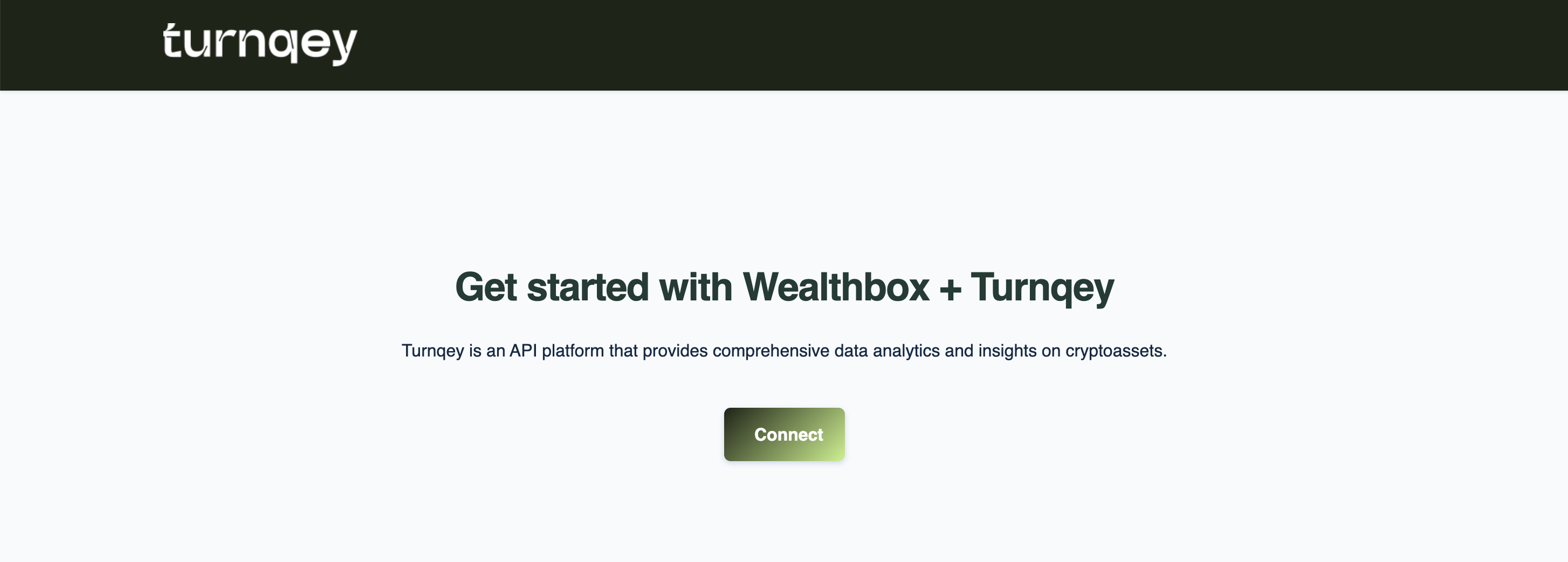
1. Access the Landing Page: Navigate to the
landing page provided by Turnqey Labs and Click on the
“Connect” button to begin the integration process.
 2. Authenticate via Wealthbox:
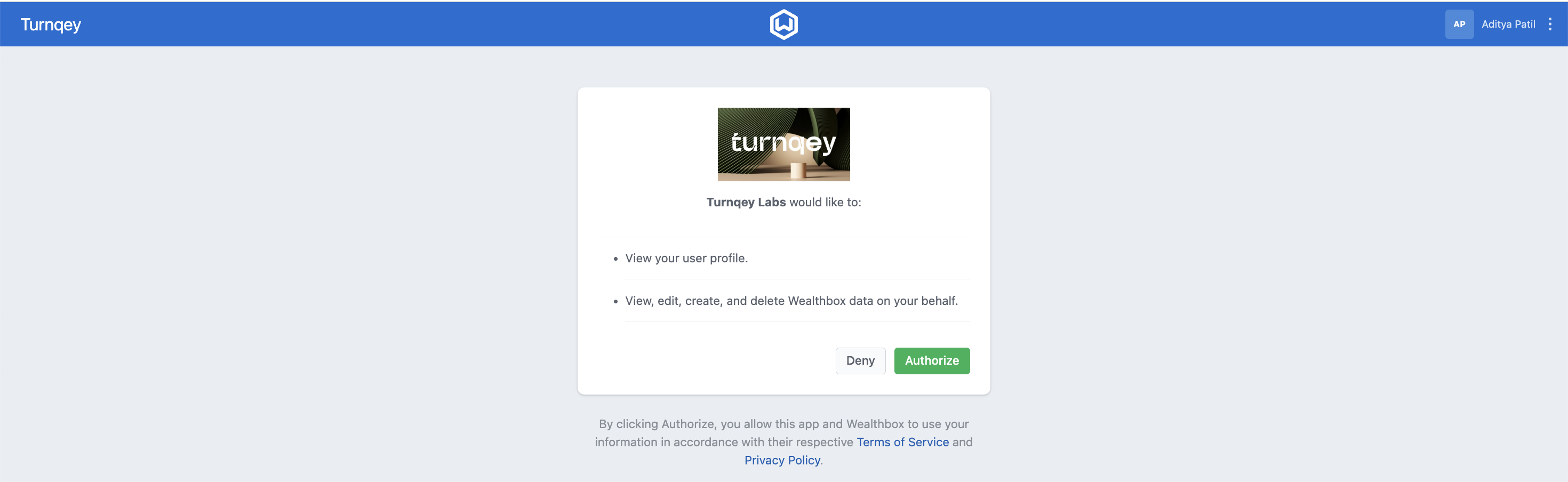
You will be redirected to the Wealthbox authentication page.
Click on the
“Authorize” button to grant necessary permissions.
 3. Confirmation:
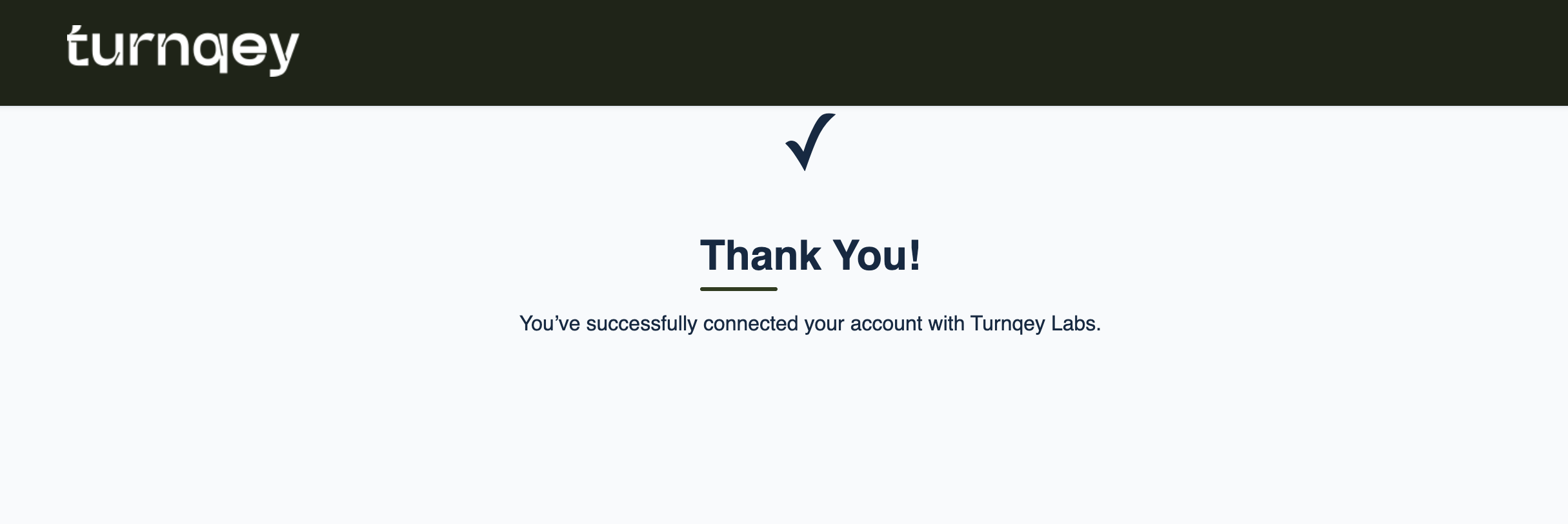
Once successfully authenticated, Turnqey Labs will display a confirmation message indicating successful connection.
🖥️ Step 2: Wealthbox Portal Actions
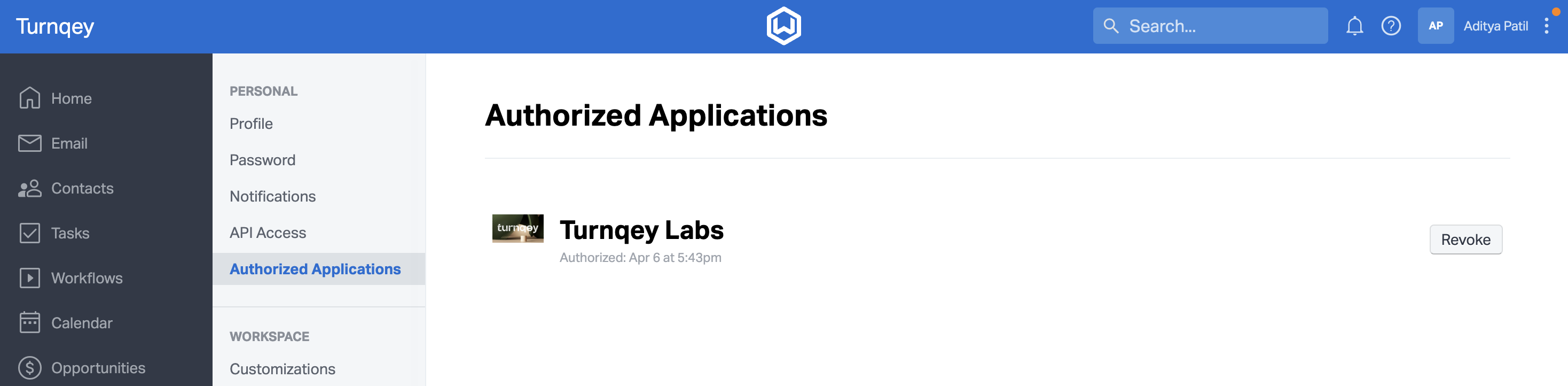
1. Confirmation: After logging into the Wealthbox portal, navigate to
Settings > Authorized Applications where you will see
Turnqey Labs listed as an authorized application.
Do not click “Revoke" as this will remove the authentication and disconnect the integration.
 2. Custom field creation:
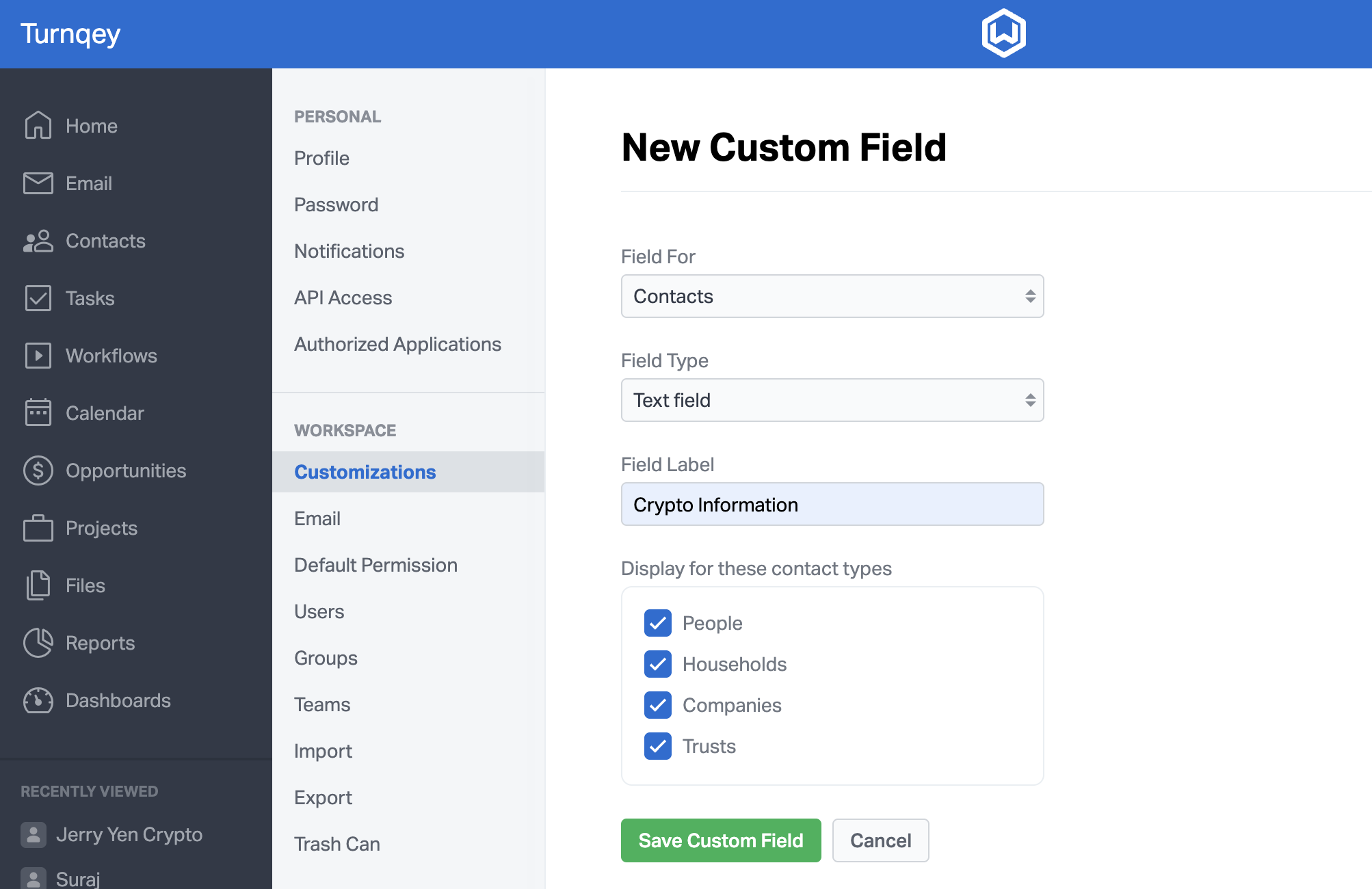
 In the Wealthbox portal, create a custom field with the exact name
“Crypto Information”, which will serve as the destination for receiving mapped data transmitted from the Turnqey Labs.
To configure the integration, navigate to Settings > Customizations > Custom Fields, then click on “+ Create Custom Field” button and create a new field titled
“Crypto Information”.
 3. Send email to contact:
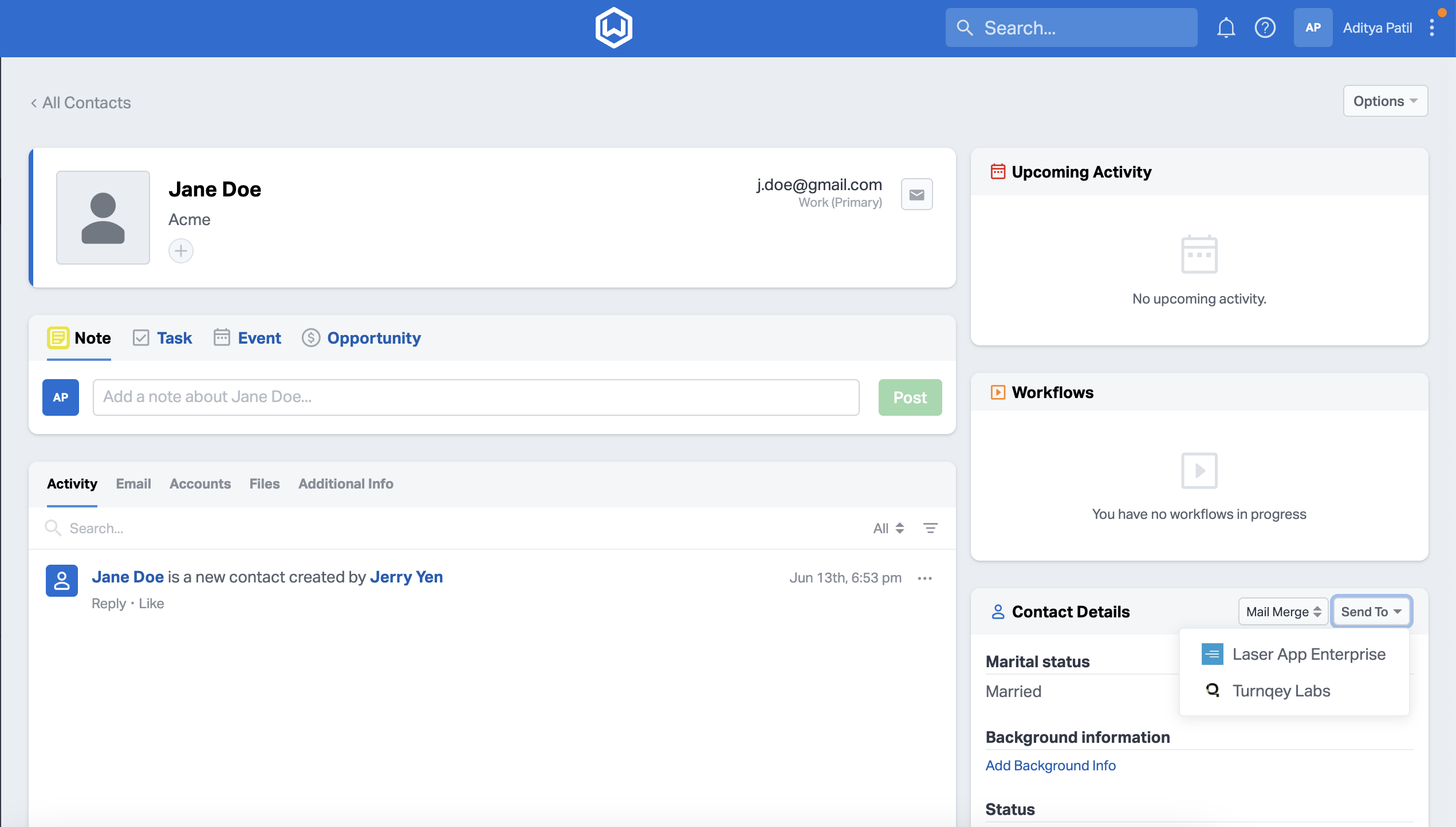
 Advisor can now go to any client profile in Wealthbox, click the “Send To” button, and click on
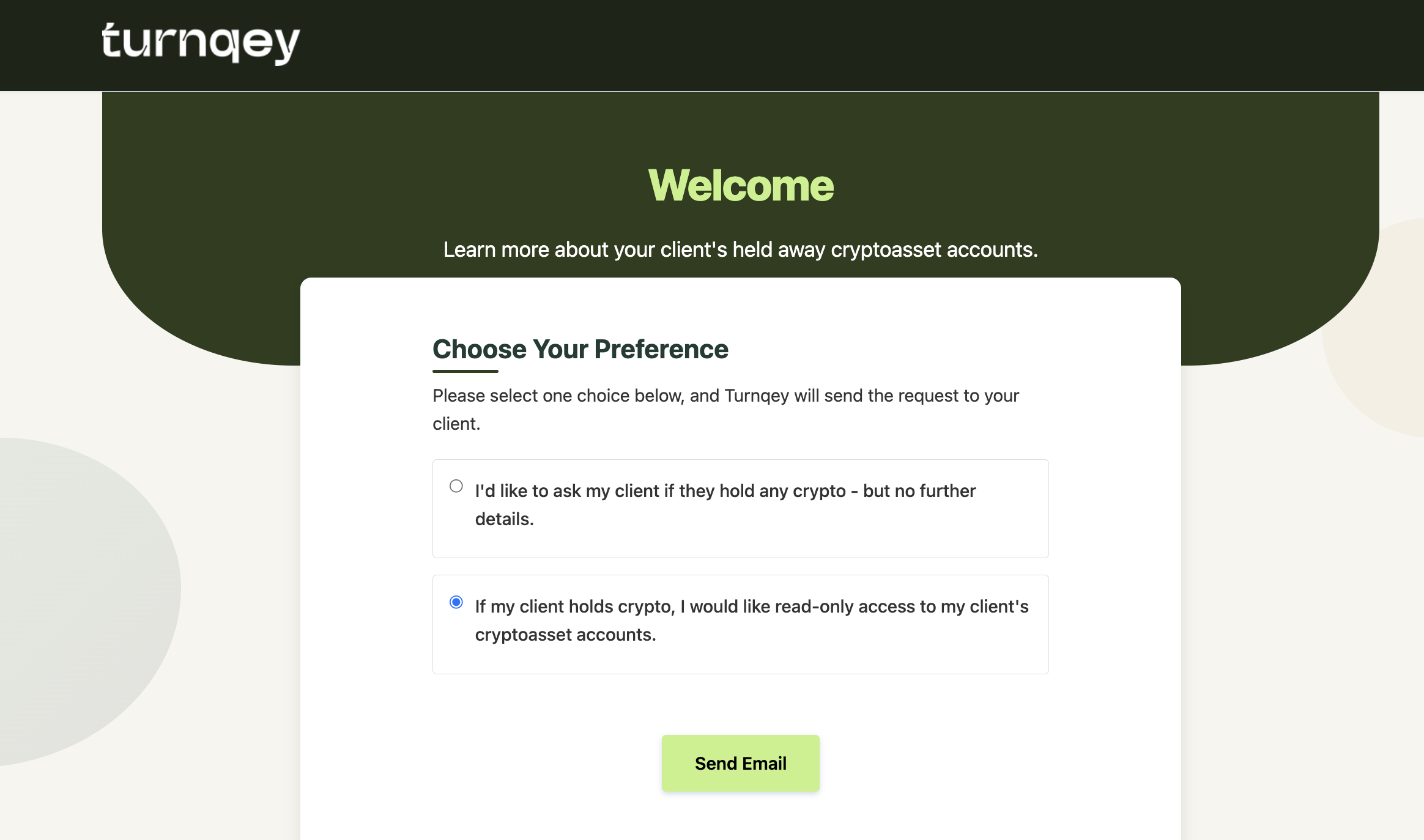
Turnqey Labs will land on preference page.
( Advisors can also edit existing client profiles or create new ones, including updating fields such as the client’s name and email address. )
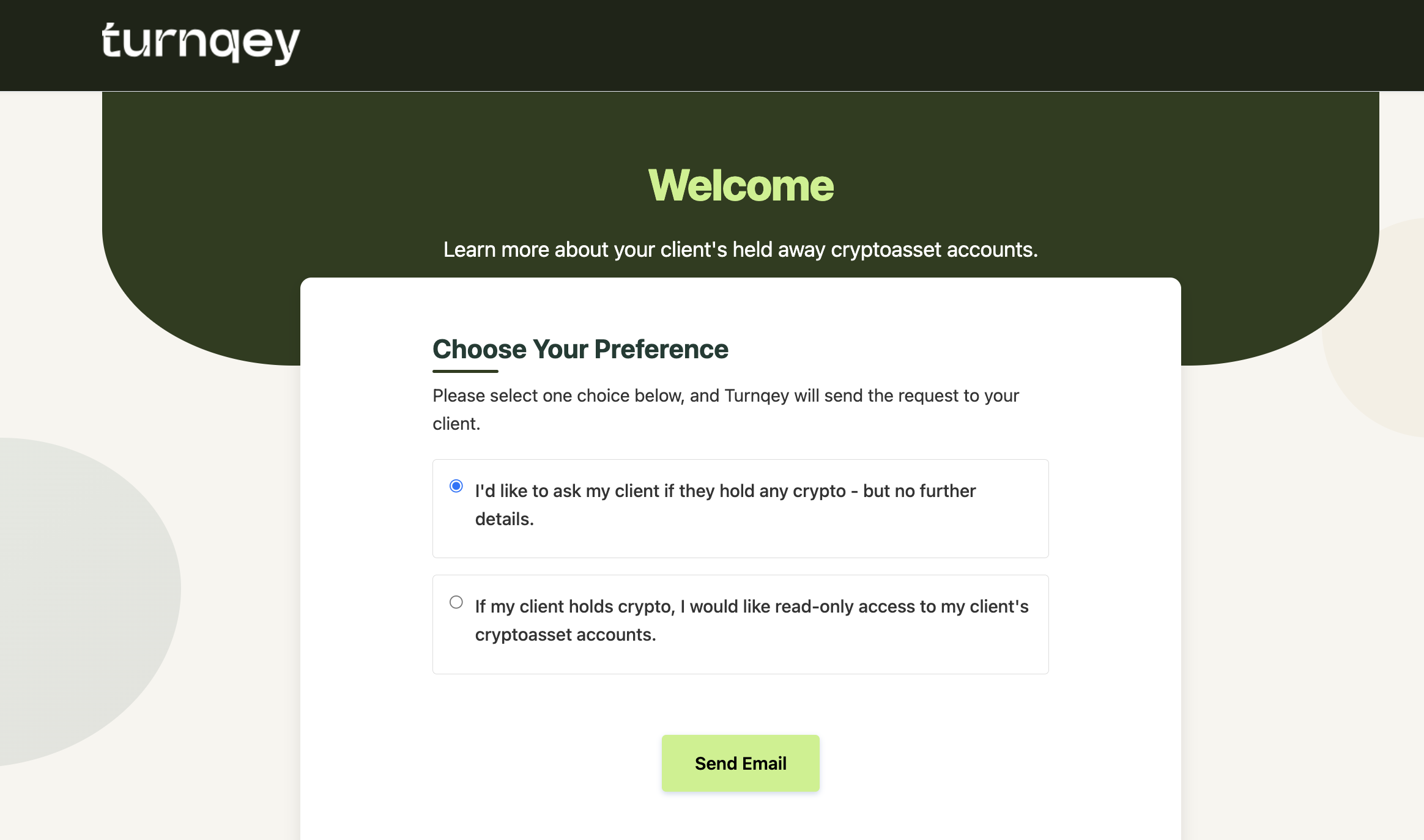
 Option 1 Basic Crypto Enquiry:
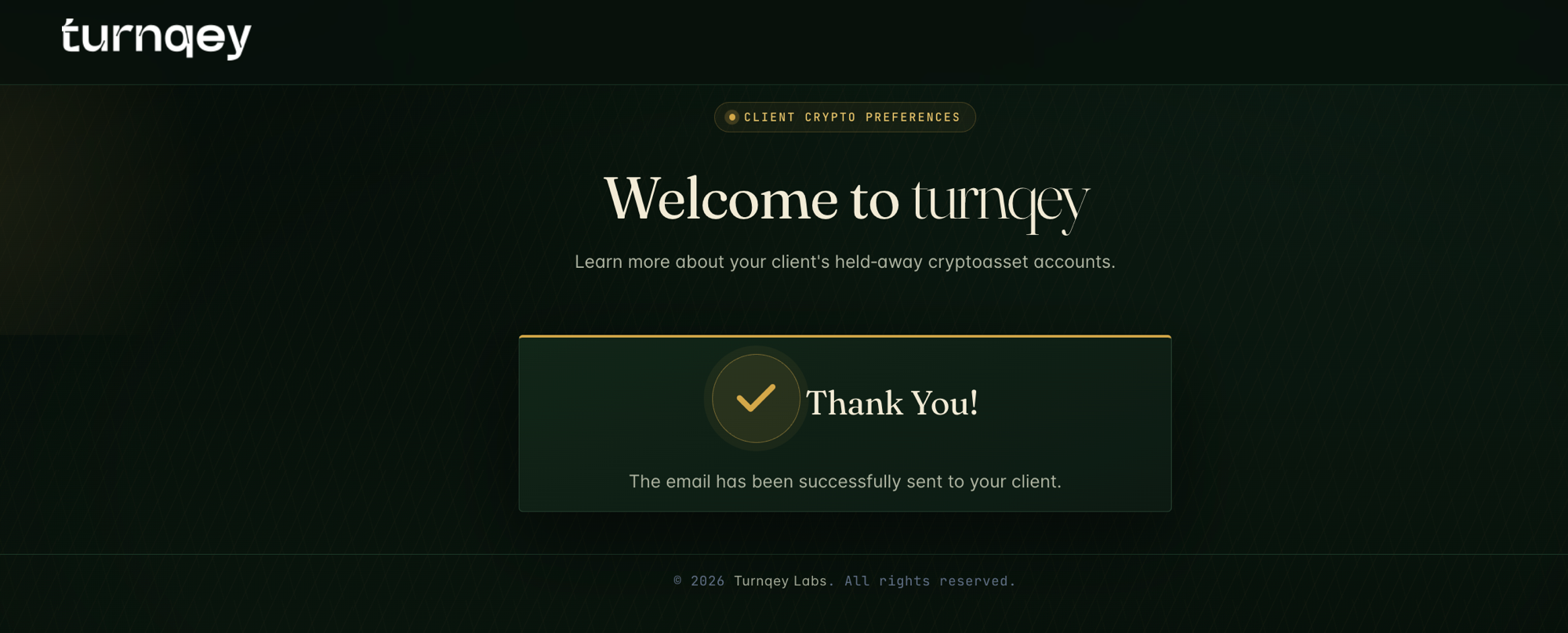
 By clicking the
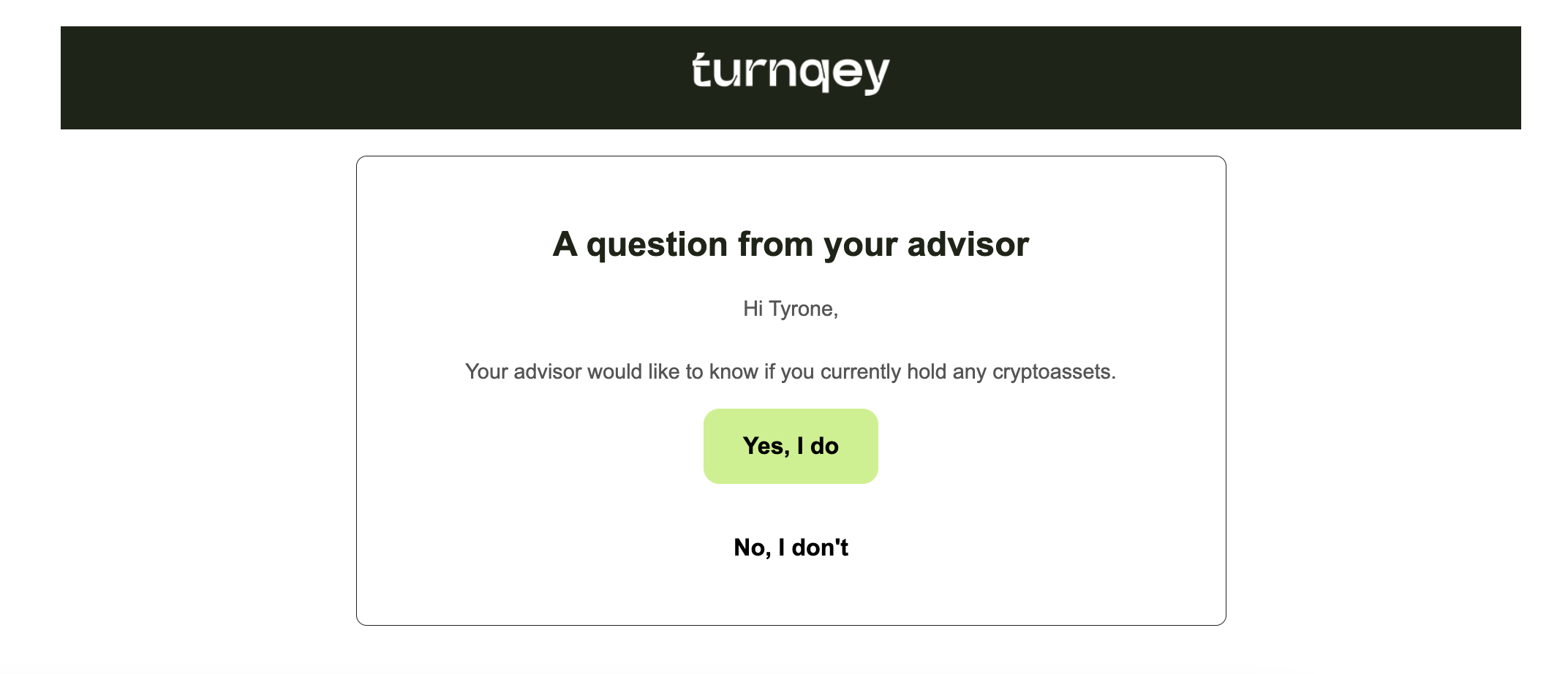
“Send Email” button, an email is triggered to the contact asking them to respond with either Yes,I do or No, I don't.
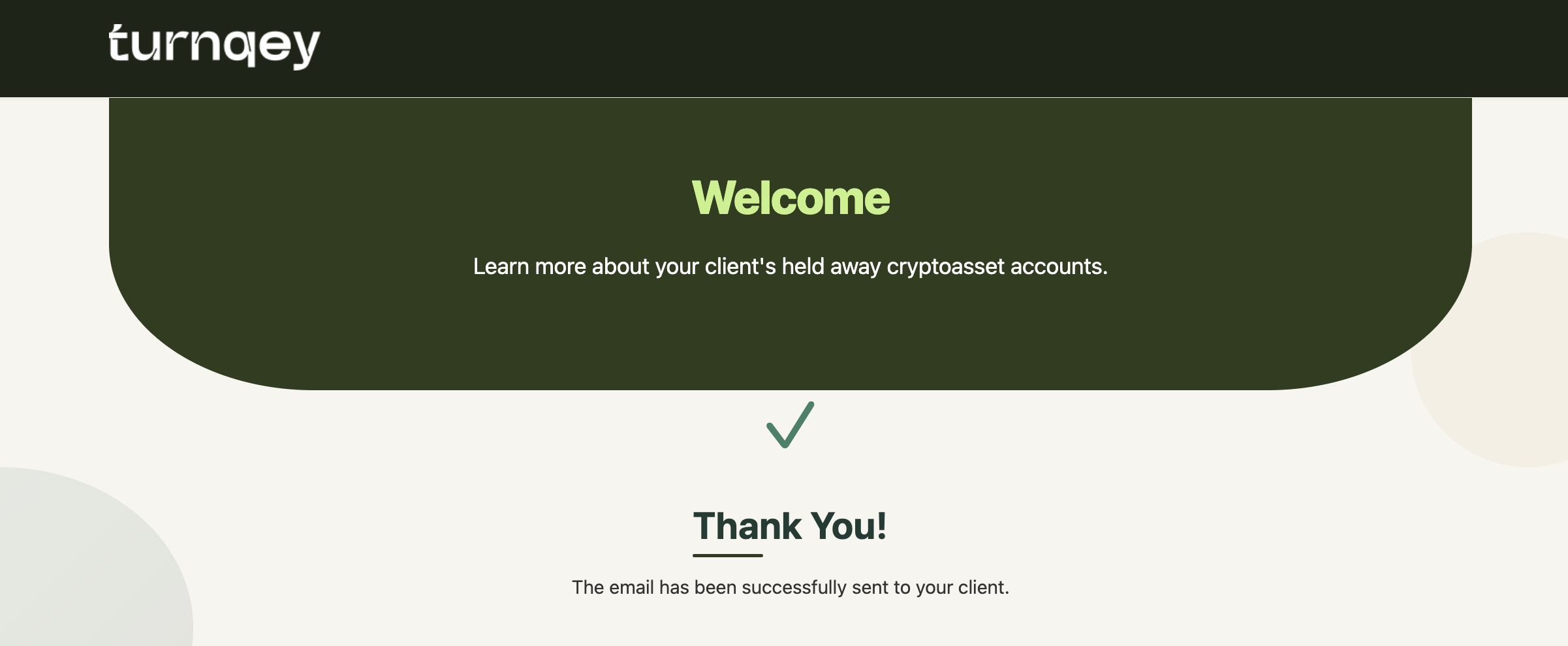
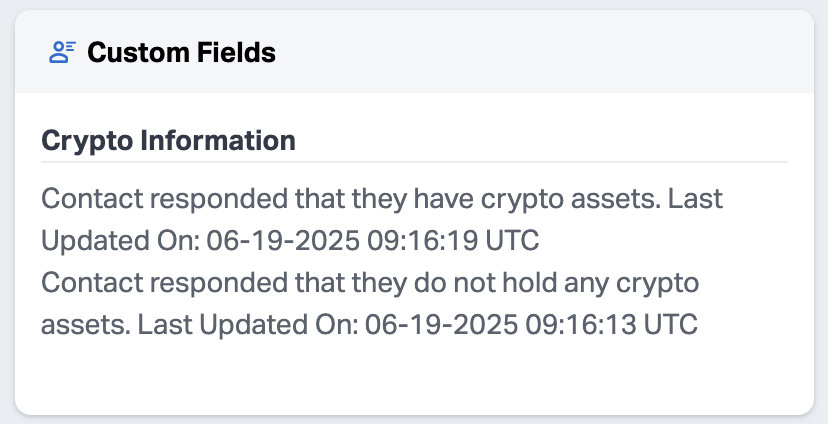
Once the client selects an option in the email, their response is automatically captured and recorded as a custom field value under
“Crypto Information” in Wealthbox.
 Option 2: Read-Only Crypto Access
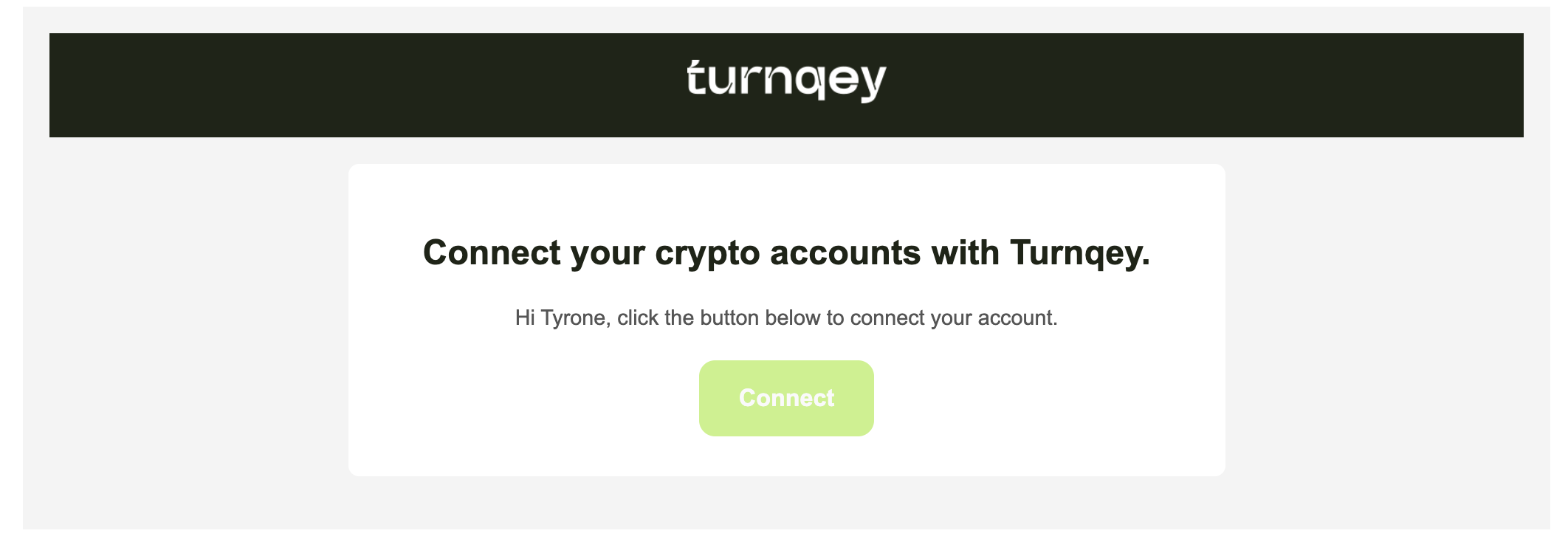
 Sends an email prompting the client to connect their crypto exchange account.
Clicking the
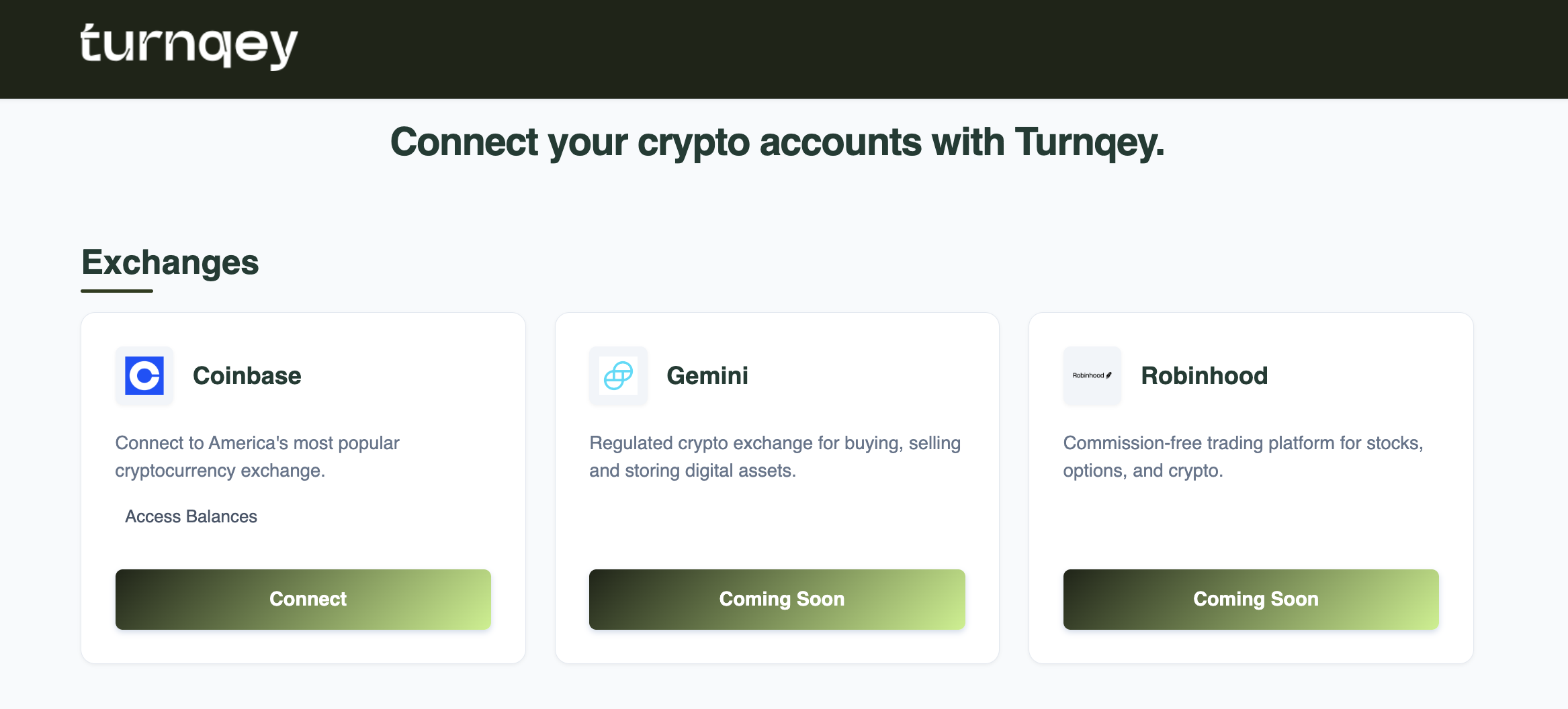
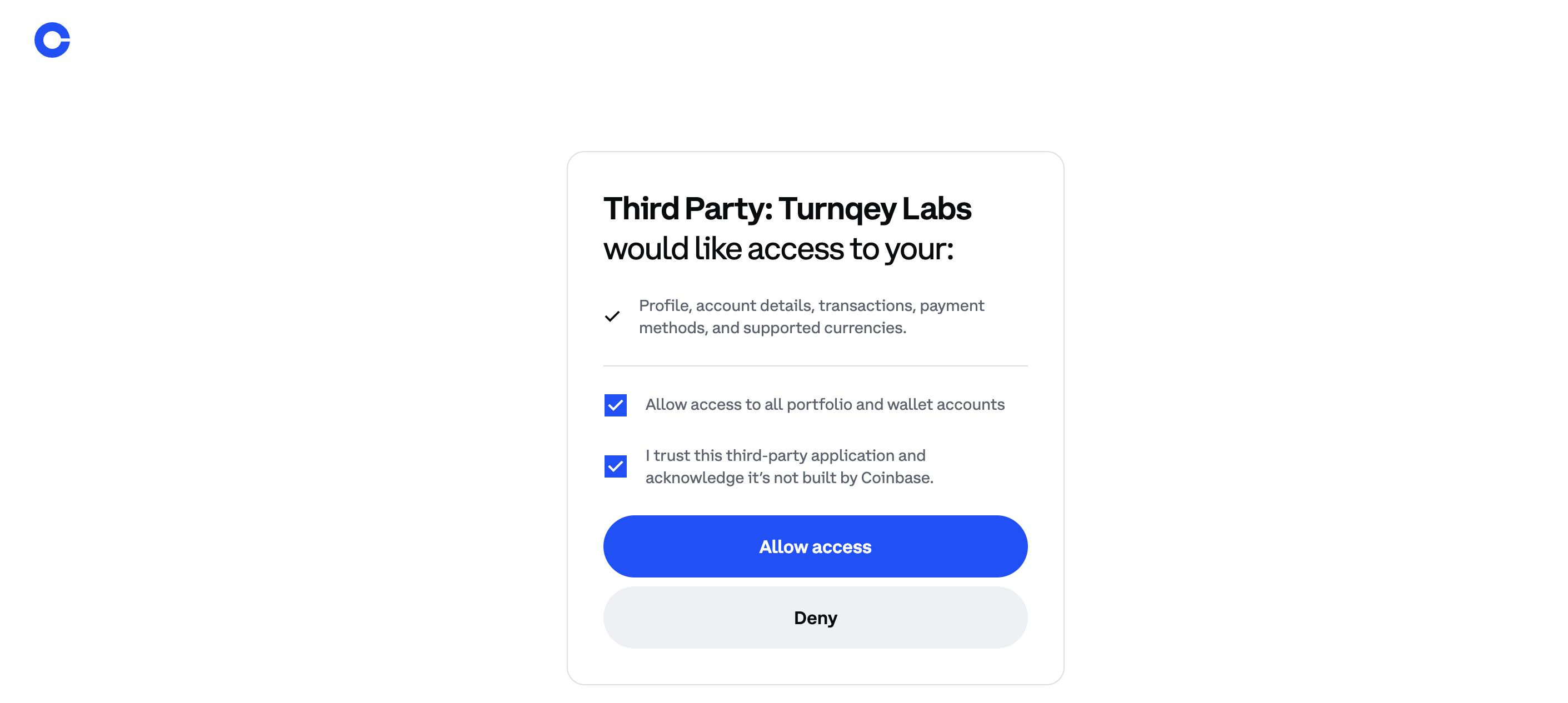
“Connect” button in the email redirects the client to Turnqey’s exchange connection page, where they select Coinbase and complete the OAuth flow.
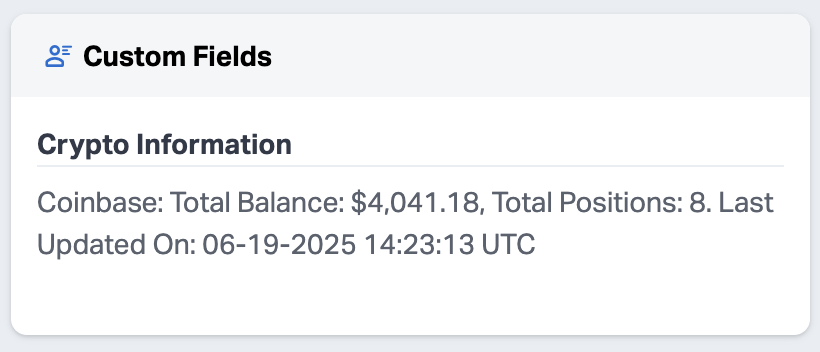
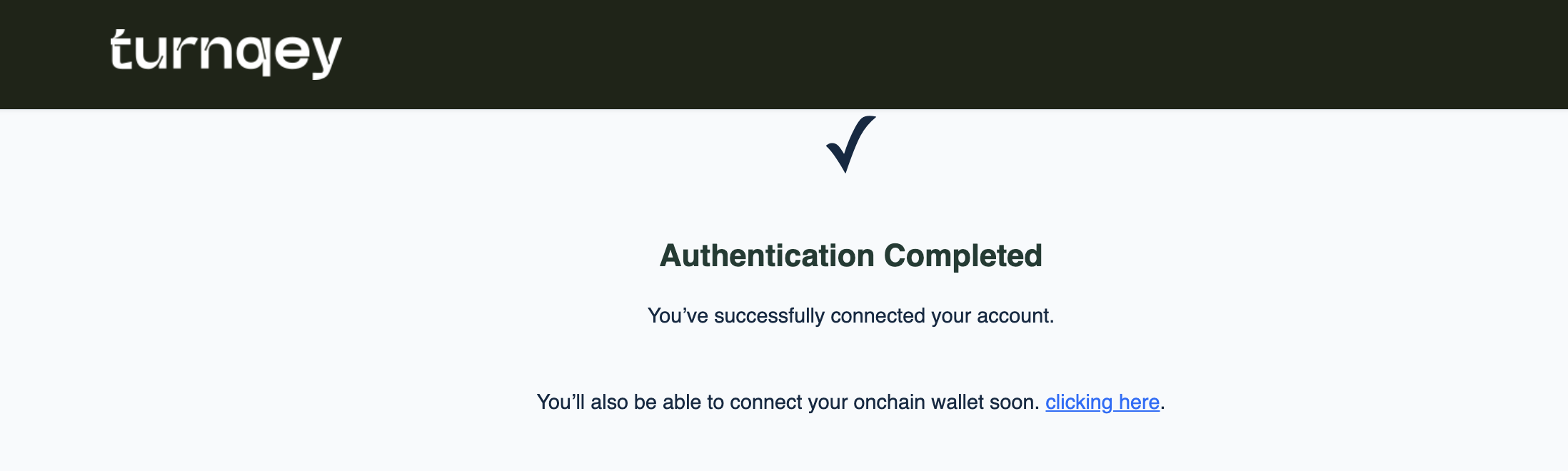 Upon successful connection, the contact's custom field in Wealthbox are automatically updated with the crypto exchange account data.
 🔁 Data Refresh Cycle
• Turnqey updates client portfolio data in Wealthbox once every month.
🔁 Data Refresh Cycle
• Turnqey updates client portfolio data in Wealthbox once every month.
